> ## Documentation Index
> Fetch the complete documentation index at: https://conveo.ai/docs/llms.txt
> Use this file to discover all available pages before exploring further.
# Testing Your Study
> Preview your interview, pin the stimuli and earlier answers a test should use, see why each question is asked or skipped, and understand which live recruitment checks a test bypasses
Test your study before recruiting participants. Use a full test to check screening, question order, stimuli, and follow-up questions, or start at one question to review a specific change. When a study randomizes stimuli or routes on earlier answers, a customized test lets you fix the stimuli and the earlier answers the test should use, instead of retrying until randomization happens to produce the path you want to see.
What a test checks
A test creates a separate test interview. It lets you try the participant experience without counting as a real completion in recruitment or quota totals.
Test interviews still evaluate [screener answers](/docs/setup-to-launch/screener-questions) and draw [stimuli](/docs/setup-to-launch/stimuli), but bypass quota and study response-limit checks at screening. A successful test does not prove that a real participant will be admitted to a full study. See [Quotas](/docs/setup-to-launch/quotas#how-quota-evaluation-works).
Choose useful scenarios
Try both qualifying and disqualifying screener answers. For routed studies, test each important branch from the beginning. For randomized stimuli, check different eligible concepts and any language-specific assets.
Use short, detailed, and unclear answers to see how the moderator follows up. Test camera, microphone, and screen sharing where your study requires them.
Testing options
| Option | Use it to |
| ------------------------------------- | ------------------------------------------------------------------------------------------------------------------------------------------------------------------------ |
| **Start a test interview** | Run the interview yourself from the beginning, exactly as a participant sees it. |
| **Copy test recruit link** | Give colleagues a link that starts a new test interview. |
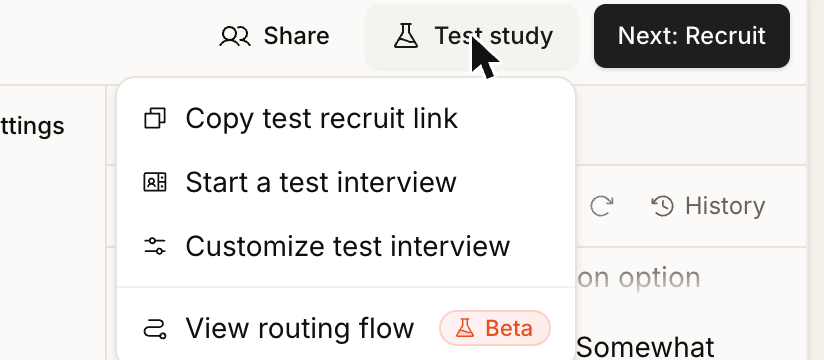
| **Customize test interview** | Choose a starting question, pin which stimuli are assigned, supply earlier answers, and follow a panel that explains why each question is asked or skipped. |
| **Test** in a question's actions menu | Open the customization page with that question already selected as the starting point. |
| **View routing flow** | Read the whole guide's routing as a diagram, without running an interview. See [Question Routing](/docs/setup-to-launch/question-routing#see-every-path-in-the-routing-flow). |
Run a test
Open the testing menu
Open your study's design page and choose **Test study**. The menu offers **Start a test interview**, **Copy test recruit link**, **Customize test interview**, and **View routing flow**.
Choose the starting point
**From the beginning:** choose **Start a test interview** to open a test in a new tab. To involve colleagues, choose **Copy test recruit link** and share that link. Both run the ordinary participant experience with normal random stimulus selection.
**From one question, or with fixed conditions:** choose **Customize test interview**, or open a question's **Question actions** menu and select **Test** to open the same page with that question preselected. See [Customize a test interview](#customize-a-test-interview).
Follow the participant journey
Follow the interview's setup instructions, including camera, microphone, or screen sharing when requested. Answer the questions and check:
* The question and stimulus are understandable together.
* Follow-up questions match your research objectives.
* Relevant questions appear and irrelevant branches are skipped in a full test.
* The interview language and localized assets are appropriate.
Make changes and retest
Return to the topic guide, edit the question or setting, and start a new test to check the change. Use a customized test for focused edits, then complete a full test from the beginning before launch.
Customize a test interview
**Test study → Customize test interview** opens a setup page for a single test run. Nothing here changes your study design; the choices apply only to the test you are about to start.
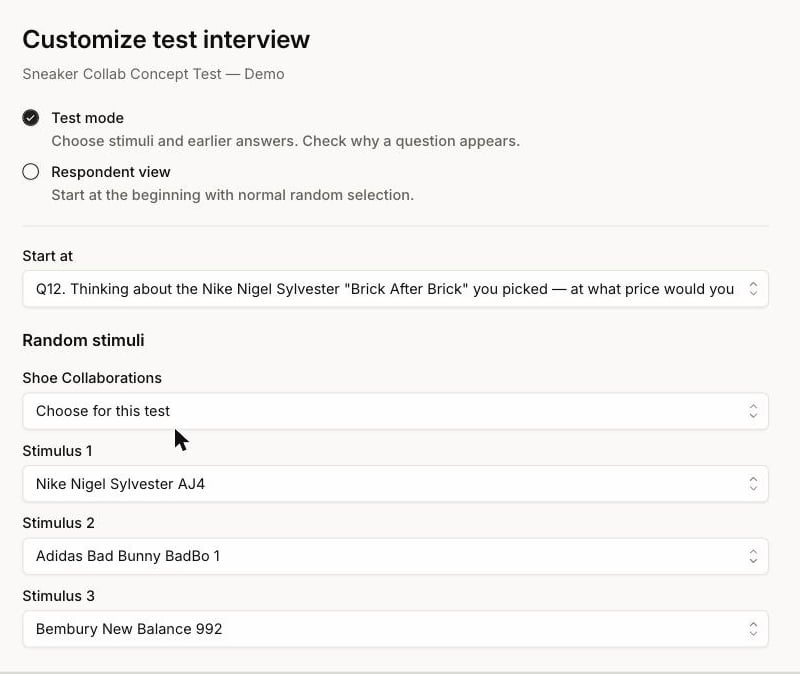
Choose test mode or respondent view
* **Test mode** lets you choose a starting question, pin stimuli, and supply earlier answers, and adds a panel that explains why each question is asked or skipped.
* **Respondent view** hides those controls and starts at the beginning with normal random selection. It is the same experience as **Start a test interview**.
Start at
**Start at** offers **Beginning of the guide** or any numbered question in the guide, including screener questions. Starting mid-guide means earlier questions are never asked, so their answers do not exist unless you supply them under **Earlier answers**.
Random stimuli
This section appears only when the study has [randomized stimuli](/docs/setup-to-launch/stimuli#randomized-stimuli), and shows one control per stimulus group, labeled with the group's name.
* **Select randomly** leaves the draw to the normal randomization and balancing logic.
* **Choose for this test** reveals one picker per stimulus position the interview assigns — **Stimulus 1**, **Stimulus 2**, and so on, up to the number of stimuli that study shows — each listing the group's assets.
Positions are the order the interview uses, so in a sequential monadic design the asset you put in **Stimulus 1** is the concept the participant sees first. Each position must hold a different asset; while two positions match, the page shows **Select a different asset for each position** and **Start test interview** stays disabled.
Pinning bypasses the draw for this run. It does not prove that live randomization, [eligibility restrictions](/docs/setup-to-launch/stimuli#restricting-who-can-get-a-concept), or balancing would produce that combination for a real participant, so a pinned test does not replace a full test from the beginning.
Earlier answers
This section appears only when the question you start at, or its section, has [routing](/docs/setup-to-launch/question-routing) that depends on earlier answers. It lists each question the rules need, with **Missing answer** plus that question's response options.
These values feed routing evaluation only; the page states that they are not recorded answers. Leaving a value as **Missing answer** is a deliberate test case: it is how you check what happens to dependent questions when the source answer is absent. See [Missing answers and participant properties](/docs/setup-to-launch/question-routing#missing-answers-and-participant-properties).
Follow a test in test mode
**Start test interview** in test mode opens the interview inside the app, alongside a **Topic guide** panel that explains the run.
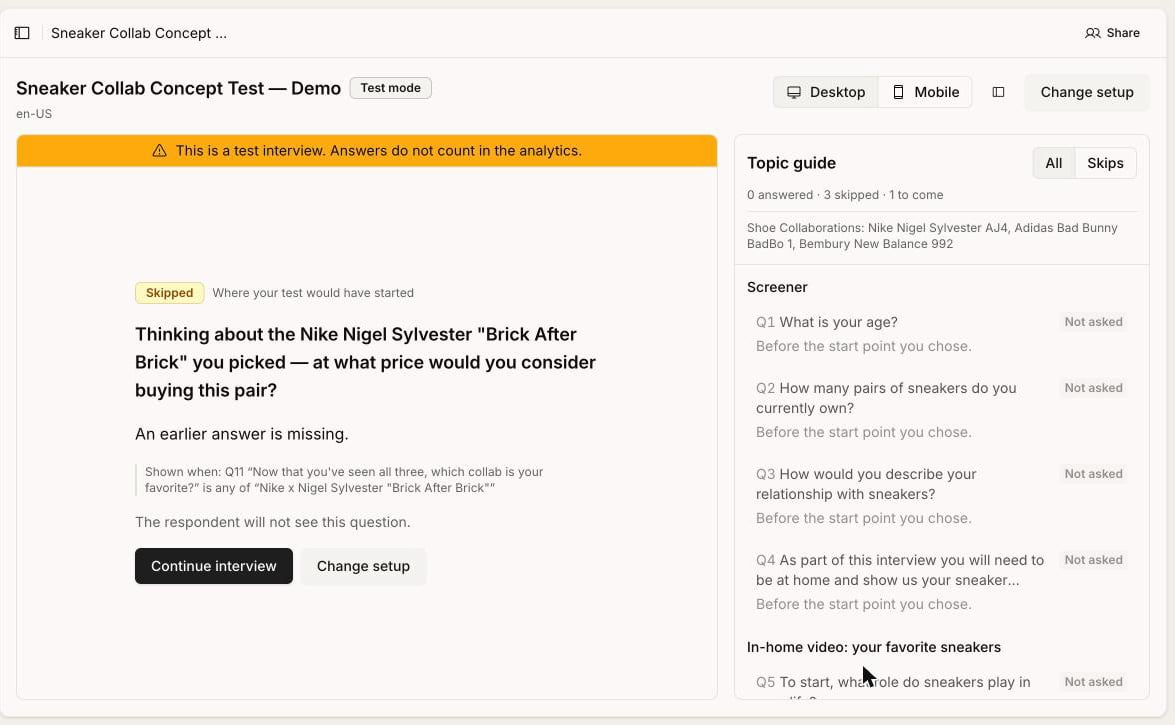 The header shows the interview language, a **Desktop** and **Mobile** preview toggle for checking layout on a phone-sized screen, a control that hides or shows the panel, and **Change setup** for returning to the setup page. A banner repeats that answers do not count in the analytics.
The panel lists every question in guide order with a status and the reason for it, and above the list:
* Counters for how many questions are answered, skipped, and still to come.
* The stimuli assigned to this run, per group.
Questions inside a repeated concept section appear once per assigned stimulus, each labeled with the asset used for that repetition, so you can confirm the order concepts are shown in. Where a question has a routing rule, the panel quotes it as **Shown when…**. Answers you supplied on the setup page appear under their question as **Supplied answer**.
| Status | Meaning |
| ------------- | ------------------------------------------------------------------------------------------------------------------------------------ |
| **Not asked** | The question sits before the start point you chose. |
| **Will show** | The question's rules have been evaluated and it will be asked, either because the routing rule matches or because no rule limits it. |
| **Waiting** | Not evaluated yet. The rule depends on an answer the interview has not reached. |
| **Skipped** | Evaluated and skipped, with the reason, such as an earlier answer being missing. |
Statuses update as the interview progresses, and the counters at the top of the panel track how many questions have been answered so far.
Switch the panel to **Skips** to list only the skipped questions. Before anything is skipped it reads **No skips yet**.
Test mode evaluates routing rather than overriding it. If the question you start at is skipped by its own or its section's rule, the run opens on a **Skipped** card that names the question, gives the reason, quotes the rule, and offers **Continue interview** to carry on to the next question that will be asked, or **Change setup** to supply the earlier answers that would make it appear.
## Test diary entries and participant properties
If your study allows multiple completions or defines participant properties, a dialog opens before copying the link or starting the test.
* **Entry:** choose the diary entry to simulate. The default is the first entry. Test later entries to check questions that depend on entry number.
* **Participant properties:** choose values for the properties your study defines, such as region or age group. Use different combinations to check property-based routing without uploading a participant CSV.
The chosen values are included in the test link. Entry selection simulates that entry number; it does not create the earlier interviews or their answer history.
The header shows the interview language, a **Desktop** and **Mobile** preview toggle for checking layout on a phone-sized screen, a control that hides or shows the panel, and **Change setup** for returning to the setup page. A banner repeats that answers do not count in the analytics.
The panel lists every question in guide order with a status and the reason for it, and above the list:
* Counters for how many questions are answered, skipped, and still to come.
* The stimuli assigned to this run, per group.
Questions inside a repeated concept section appear once per assigned stimulus, each labeled with the asset used for that repetition, so you can confirm the order concepts are shown in. Where a question has a routing rule, the panel quotes it as **Shown when…**. Answers you supplied on the setup page appear under their question as **Supplied answer**.
| Status | Meaning |
| ------------- | ------------------------------------------------------------------------------------------------------------------------------------ |
| **Not asked** | The question sits before the start point you chose. |
| **Will show** | The question's rules have been evaluated and it will be asked, either because the routing rule matches or because no rule limits it. |
| **Waiting** | Not evaluated yet. The rule depends on an answer the interview has not reached. |
| **Skipped** | Evaluated and skipped, with the reason, such as an earlier answer being missing. |
Statuses update as the interview progresses, and the counters at the top of the panel track how many questions have been answered so far.
Switch the panel to **Skips** to list only the skipped questions. Before anything is skipped it reads **No skips yet**.
Test mode evaluates routing rather than overriding it. If the question you start at is skipped by its own or its section's rule, the run opens on a **Skipped** card that names the question, gives the reason, quotes the rule, and offers **Continue interview** to carry on to the next question that will be asked, or **Change setup** to supply the earlier answers that would make it appear.
## Test diary entries and participant properties
If your study allows multiple completions or defines participant properties, a dialog opens before copying the link or starting the test.
* **Entry:** choose the diary entry to simulate. The default is the first entry. Test later entries to check questions that depend on entry number.
* **Participant properties:** choose values for the properties your study defines, such as region or age group. Use different combinations to check property-based routing without uploading a participant CSV.
The chosen values are included in the test link. Entry selection simulates that entry number; it does not create the earlier interviews or their answer history.
Before launching
Complete at least one full test from the beginning, in respondent view, and ask a colleague to review unclear instructions. Use customized tests to reach specific stimulus and routing combinations quickly, then confirm the whole path end to end.
Check [recruitment settings](/docs/setup-to-launch/recruiting-participants), response limits, and [quota groups](/docs/setup-to-launch/quotas) separately: tests bypass these limits during screening and do not establish that your recruitment setup will accept the intended sample. A test that returns to a qualified interview can still encounter the segment-capacity recheck before starting.
For diary pauses and device restrictions, also review [Detailed Topic Guide Settings](/docs/setup-to-launch/detailed-topic-guide-settings).
***
**Need help?** Contact [support@conveo.ai](mailto:support@conveo.ai).